

Getting started
Choose one of the following options to get started with the Unstructured API’s workflow operations:- Follow the quickstart or walkthrough, which use the Unstructured Python SDK from remotely hosted Google Colab notebooks. These notebooks require no local setup.
- Start using the Unstructred Python SDK. This option requires you to set up a local Python virtual environment.
- Start using a local REST client, such as
curlor Postman.
Quickstart
The following quickstart shows how to use the Unstructured Python SDK to have Unstructured process local files by using the Unstructured API’s on-demand jobs functionality. This functionality is part of the Unstructured API’s collection of workflow operations. This quickstart is available in two options:- Use a remote notebook - This option uses a remotely hosted Google Colab notebook. There are no additional setup steps required.
- Use your local machine - This option requires you to install the Unstructured Python SDK on your local machine.
Walkthrough
This walkthrough builds upon the quickstart. Like the quickstart, this walkthrough shows how to use the Unstructured Python SDK to have Unstructured process local files by using the Unstructured API’s on-demand jobs functionality. This walkthrough goes further by also showing in depth how to use Unstructured’s chunking, enriching, and embedding features. This walkthrough is available as a remotely hosted Google Colab notebook. This notebook requires no local setup.Unstructured Python SDK
Watch the following 4-minute video to learn how to use the Python SDK to call the Unstructured API’s workflow operations to create connectors in the Unstructured UI.-
If you do not already have an Unstructured account, sign up for free.
After you sign up, you are automatically signed in to your new Unstructured Let’s Go account, at https://platform.unstructured.io.
To sign up for a Business account instead, contact Unstructured Sales, or learn more.
-
If you have an Unstructured Let’s Go, Pay-As-You-Go, or Business SaaS account and are not already signed in, sign in to your account at https://platform.unstructured.io.
For other types of Business accounts, see your Unstructured account administrator for sign-in instructions, or email Unstructured Support at support@unstructured.io.
-
Get your Unstructured API key:
a. After you sign in to your Unstructured Let’s Go, Pay-As-You-Go, or Business account, click API Keys on the sidebar.
b. Click Generate API Key.For a Business account, before you click API Keys, make sure you have selected the organizational workspace you want to create an API key for. Each API key works with one and only one organizational workspace. Learn more.
c. Follow the on-screen instructions to finish generating the key.
d. Click the Copy icon next to your new key to add the key to your system’s clipboard. If you lose this key, simply return and click the Copy icon again.
unstructured_client functions for creating, listing, updating,
and deleting connectors, workflows, and jobs in the Unstructured UI all use the Unstructured API’s workflow operations URL.
This URL was provided to you when your Unstructured account was created.
If you do not have this URL, email Unstructured Support at support@unstructured.io.
https://platform.unstructuredapp.io/api/v1.
However, you should always use the URL that was provided to you when your Unstructured account was created.server_url parameter in the UnstructuredClient constructor to the target API URL.
The Unstructured API’s workflow operations enable you to work with connectors,
workflows, and jobs in the Unstructured UI.
- A source connector ingests files or data into Unstructured from a source location.
- A destination connector sends the processed data from Unstructured to a destination location.
- A workflow defines how Unstructured will process the data.
- A job runs a workflow at a specific point in time.
REST endpoints
The Unstructured API’s workflow operations are callable from a set of Representational State Transfer (REST) endpoints, which you can call through standard REST-enabled utilities, tools, programming languages, packages, and libraries. The examples, shown later on this page and on related pages, describe how to call the Unstructured API’s workflow operations withcurl and Postman. You can adapt this information as needed for your preferred programming languages and libraries, for example by using the
requests library with Python.
curl and Postman
The followingcurl examples use the following environment variables, which you can set as follows:
https://platform.unstructuredapp.io/api/v1.
However, you should always use the URL that was provided to you when your Unstructured account was created.curl examples and help prevent
you from storing scripts that contain sensitive URLs and API keys in public source code repositories.
To get your Unstructured API key, do the following:
-
If you do not already have an Unstructured account, sign up for free.
After you sign up, you are automatically signed in to your new Unstructured Let’s Go account, at https://platform.unstructured.io.
To sign up for a Business account instead, contact Unstructured Sales, or learn more.
-
If you have an Unstructured Let’s Go, Pay-As-You-Go, or Business SaaS account and are not already signed in, sign in to your account at https://platform.unstructured.io.
For other types of Business accounts, see your Unstructured account administrator for sign-in instructions, or email Unstructured Support at support@unstructured.io.
-
Get your Unstructured API key:
a. After you sign in to your Unstructured Let’s Go, Pay-As-You-Go, or Business account, click API Keys on the sidebar.
b. Click Generate API Key.For a Business account, before you click API Keys, make sure you have selected the organizational workspace you want to create an API key for. Each API key works with one and only one organizational workspace. Learn more.
c. Follow the on-screen instructions to finish generating the key.
d. Click the Copy icon next to your new key to add the key to your system’s clipboard. If you lose this key, simply return and click the Copy icon again.
- In Postman, on your workspace’s sidebar, click Environments.
- Click Globals.
-
Create two global variables with the following settings:
- Variable:
UNSTRUCTURED_API_URL - Type:
default - Initial value: The Unstructured API’s workflow operations URL that was provided to you when your Unstructured account was created.
- Current value: The Unstructured API’s workflow operations URL that was provided to you when your Unstructured account was created.
- Variable:
UNSTRUCTURED_API_KEY - Type:
secret - Initial value:
<your-unstructured-api-key> - Current value:
<your-unstructured-api-key>
- Variable:
- Click Save.
- Install Postman.
- Sign in to Postman.
-
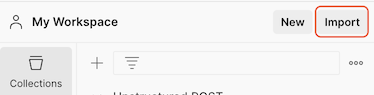
In your workspace, click Import.
-
In the Paste cURL, Raw text or URL box, enter the following URL, and then press
Enter: For all workflow operations:For on-demand job related operations only:Each on-demand job is limited to 10 files, and each file is limited to 10 MB in size.If you need to launch a series of on-demand jobs in rapid succession, you must wait at least one second between launch requests. Otherwise, you will receive a rate limit error.A maximum of 5 on-demand jobs can be running in your Unstructured account. If you launch a new on-demand job but 5 existing on-demand jobs are still running, the new on-demand job will remain in a scheduled state until one of the 5 existing on-demand jobs is done running. - On the sidebar, click Collections.
- Expand Unstructured REST API - Workflow Endpoint.
- Select the request that you want to use.
- As applicable, modify the URL as needed to specify any required resource IDs for the request.
-
On the Headers tab, next to
unstructured-api-key, enter your Unstructured API key in the Value column. As applicable, add, remove, or modify any other required headers for the request. - As applicable, on the Params tab, add, remove, or modify any required parameters for the request.
- As applicable, on the Body tab, add, remove, or modify the required request body for the request.
- Click Send.
- To save the response, in the response area, click the ellipses, and then click Save response to file.
-
If you do not already have an Unstructured account, sign up for free.
After you sign up, you are automatically signed in to your new Unstructured Let’s Go account, at https://platform.unstructured.io.
To sign up for a Business account instead, contact Unstructured Sales, or learn more.
-
If you have an Unstructured Let’s Go, Pay-As-You-Go, or Business SaaS account and are not already signed in, sign in to your account at https://platform.unstructured.io.
For other types of Business accounts, see your Unstructured account administrator for sign-in instructions, or email Unstructured Support at support@unstructured.io.
-
Get your Unstructured API key:
a. After you sign in to your Unstructured Let’s Go, Pay-As-You-Go, or Business account, click API Keys on the sidebar.
b. Click Generate API Key.For a Business account, before you click API Keys, make sure you have selected the organizational workspace you want to create an API key for. Each API key works with one and only one organizational workspace. Learn more.
c. Follow the on-screen instructions to finish generating the key.
d. Click the Copy icon next to your new key to add the key to your system’s clipboard. If you lose this key, simply return and click the Copy icon again.
- A source connector ingests files or data into Unstructured from a source location.
- A destination connector sends the processed data from Unstructured to a destination location.
- A workflow defines how Unstructured will process the data.
- A job runs a workflow at a specific point in time.
Restrictions
The following Unstructured SDKs, tools, and libraries do not work with the Unstructured API’s workflow operations:- The Unstructured JavaScript/TypeScript SDK
- Local single-file POST requests to the Unstructured Partition Endpoint
- The Unstructured open source Python library
- The Unstructured Ingest CLI
- The Unstructured Ingest Python library
https://api.unstructuredapp.io/general/v0/general (the default Unstructured Partition Endpoint URL).
Connectors
You can list, get, create, update, delete, and test source connectors. You can also list, get, create, update, delete, and test destination connectors. For general information, see Connectors.List source connectors
To list source connectors, use theUnstructuredClient object’s sources.list_sources function (for the Python SDK) or
the GET method to call the /sources endpoint (for curl or Postman).
To filter the list of source connectors, use the ListSourcesRequest object’s source_type parameter (for the Python SDK)
or the query parameter source_type=<type> (for curl or Postman),
replacing <type> with the source connector type’s unique ID
(for example, for the Amazon S3 source connector type, S3 for the Python SDK or s3 for curl or Postman).
To get this ID, see Sources.
Python SDK
Python SDK
Python SDK (async)
Python SDK (async)
curl
curl
Postman
Postman
- In the method drop-down list, select GET.
-
In the address box, enter the following URL:
-
On the Headers tab, enter the following headers:
- Key:
unstructured-api-key, Value:{{UNSTRUCTURED_API_KEY}} - Key:
accept, Value:application/json
- Key:
-
To filter the list of source connectors, on the Params tab, enter the following query parameter:
- Key:
source_type, Value:<type>
- Key:
- Click Send.
Get a source connector
To get information about a source connector, use theUnstructuredClient object’s sources.get_source function (for the Python SDK) or
the GET method to call the /sources/<connector-id> endpoint (for curl or Postman), replacing
<connector-id> with the source connector’s unique ID. To get this ID, see List source connectors.
Python SDK
Python SDK
Python SDK (async)
Python SDK (async)
curl
curl
Postman
Postman
- In the method drop-down list, select GET.
-
In the address box, enter the following URL:
-
On the Headers tab, enter the following headers:
- Key:
unstructured-api-key, Value:{{UNSTRUCTURED_API_KEY}} - Key:
accept, Value:application/json
- Key:
- Click Send.
Create a source connector
To create a source connector, use theUnstructuredClient object’s sources.create_source function (for the Python SDK) or
the POST method to call the /sources endpoint (for curl or Postman).
In the CreateSourceConnector object (for the Python SDK) or
the request body (for curl or Postman),
specify the settings for the connector. For the specific settings to include, which differ by connector, see
Sources.
For the Python SDK, replace <type> with the source connector type’s unique ID (for example, for the Amazon S3 source connector type, S3).
To get this ID, see Sources.
Python SDK
Python SDK
Python SDK (async)
Python SDK (async)
curl
curl
Postman
Postman
- In the method drop-down list, select POST.
-
In the address box, enter the following URL:
-
On the Headers tab, enter the following headers:
- Key:
unstructured-api-key, Value:{{UNSTRUCTURED_API_KEY}} - Key:
accept, Value:application/json - Key:
content-type, Value,application/json
- Key:
- On the Body tab, select raw and JSON, and specify the settings for the connector.
- Click Send.
Update a source connector
To update information about a source connector, use theUnstructuredClient object’s sources.update_source function (for the Python SDK) or
the PUT method to call the /sources/<connector-id> endpoint (for curl or Postman), replacing
<connector-id> with the source connector’s unique ID. To get this ID, see List source connectors.
In the UpdateSourceConnector object (for the Python SDK) or
the request body (for curl or Postman), specify the settings for the connector. For the specific settings to include, which differ by connector, see
Sources.
For the Python SDK, replace <type> with the source connector type’s unique ID (for example, for the Amazon S3 source connector type, S3).
To get this ID, see Sources.
You must specify all of the settings for the connector, even for settings that are not changing.
You can change any of the connector’s settings except for its name and type.
Python SDK
Python SDK
Python SDK (async)
Python SDK (async)
curl
curl
Postman
Postman
- In the method drop-down list, select PUT.
-
In the address box, enter the following URL:
-
On the Headers tab, enter the following headers:
- Key:
unstructured-api-key, Value:{{UNSTRUCTURED_API_KEY}} - Key:
accept, Value:application/json - Key:
content-type, Value,application/json
- Key:
- On the Body tab, select raw and JSON, and specify the settings for the connector.
- Click Send.
Delete a source connector
To delete a source connector, use theUnstructuredClient object’s sources.delete_source function (for the Python SDK) or
the DELETE method to call the /sources/<connector-id> endpoint (for curl or Postman), replacing
<connector-id> with the source connector’s unique ID. To get this ID, see List source connectors.
Python SDK
Python SDK
Python SDK (async)
Python SDK (async)
curl
curl
Postman
Postman
- In the method drop-down list, select DELETE.
-
In the address box, enter the following URL:
-
On the Headers tab, enter the following headers:
- Key:
unstructured-api-key, Value:{{UNSTRUCTURED_API_KEY}} - Key:
accept, Value:application/json
- Key:
- Click Send.
Test a source connector
To test a source connector, use thePOST method to call the /sources/<connector-id>/connection-check endpoint (for curl or Postman), replacing
<connector-id> with the connector’s unique ID. To get this ID, see List source connectors.
The Python SDK does not support testing source connectors.
curl
curl
Postman
Postman
- In the method drop-down list, select POST.
-
In the address box, enter the following URL:
-
On the Headers tab, enter the following headers:
- Key:
unstructured-api-key, Value:{{UNSTRUCTURED_API_KEY}} - Key:
accept, Value:application/json
- Key:
- Click Send.
GET method to call the /sources/<connector-id>/connection-check endpoint (for curl or Postman), replacing
<connector-id> with the connector’s unique ID. To get this ID, see List source connectors.
The Python SDK does not support getting information about the most recent connector check for a source connector.
curl
curl
Postman
Postman
- In the method drop-down list, select GET.
-
In the address box, enter the following URL:
-
On the Headers tab, enter the following headers:
- Key:
unstructured-api-key, Value:{{UNSTRUCTURED_API_KEY}} - Key:
accept, Value:application/json
- Key:
- Click Send.
List destination connectors
To list destination connectors, use theUnstructuredClient object’s destinations.list_destinations function (for the Python SDK) or
the GET method to call the /destinations endpoint (for curl or Postman).
To filter the list of destination connectors, use the ListDestinationsRequest object’s destination_type parameter (for the Python SDK) or
the query parameter destination_type=<type> (for curl or Postman),
replacing <type> with the destination connector type’s unique ID
(for example, for the Amazon S3 source connector type, S3 for the Python SDK or s3 for curl or Postman).
To get this ID, see Destinations.
Python SDK
Python SDK
Python SDK (async)
Python SDK (async)
curl
curl
Postman
Postman
- In the method drop-down list, select GET.
-
In the address box, enter the following URL:
-
On the Headers tab, enter the following headers:
- Key:
unstructured-api-key, Value:{{UNSTRUCTURED_API_KEY}} - Key:
accept, Value:application/json
- Key:
-
To filter the list of destination connectors, on the Params tab, enter the following query parameter:
- Key:
destination_type, Value:<type>
- Key:
- Click Send.
Get a destination connector
To get information about a destination connector, use theUnstructuredClient object’s destinations.get_destination function (for the Python SDK) or
the GET method to call the /destinations/<connector-id> endpoint (for curl or Postman), replacing
<connector-id> with the destination connector’s unique ID. To get this ID, see List destination connectors.
Python SDK
Python SDK
Python SDK (async)
Python SDK (async)
curl
curl
Postman
Postman
- In the method drop-down list, select GET.
-
In the address box, enter the following URL:
-
On the Headers tab, enter the following headers:
- Key:
unstructured-api-key, Value:{{UNSTRUCTURED_API_KEY}} - Key:
accept, Value:application/json
- Key:
- Click Send.
Create a destination connector
To create a destination connectors, use theUnstructuredClient object’s destinations.create_destination function (for the Python SDK) or
the POST method to call the /destinations endpoint (for curl or Postman).
In the CreateDestinationConnector object (for the Python SDK) or
the request body (for curl or Postman),
specify the settings for the connector. For the specific settings to include, which differ by connector, see
Destinations.
For the Python SDK, replace <type> with the destination connector type’s unique ID (for example, for the Amazon S3 source connector type, S3).
To get this ID, see Destinations.
Python SDK
Python SDK
Python SDK (async)
Python SDK (async)
curl
curl
Postman
Postman
- In the method drop-down list, select POST.
-
In the address box, enter the following URL:
-
On the Headers tab, enter the following headers:
- Key:
unstructured-api-key, Value:{{UNSTRUCTURED_API_KEY}} - Key:
accept, Value:application/json - Key:
content-type, Value,application/json
- Key:
- On the Body tab, select raw and JSON, and specify the settings for the connector.
- Click Send.
Update a destination connector
To update information about a destination connector, use theUnstructuredClient object’s destinations.update_destination function (for the Python SDK) or
the PUT method to call the /destinations/<connector-id> endpoint (for curl or Postman), replacing
<connector-id> with the destination connector’s unique ID. To get this ID, see List destination connectors.
In the UpdateDestinationConnector object (for the Python SDK) or
the request body (for curl or Postman), specify the settings for the connector. For the specific settings to include, which differ by connector, see
Destinations.
You must specify all of the settings for the connector, even for settings that are not changing.
You can change any of the connector’s settings except for its name and type.
Python SDK
Python SDK
Python SDK (async)
Python SDK (async)
curl
curl
Postman
Postman
- In the method drop-down list, select PUT.
-
In the address box, enter the following URL:
-
On the Headers tab, enter the following headers:
- Key:
unstructured-api-key, Value:{{UNSTRUCTURED_API_KEY}} - Key:
accept, Value:application/json - Key:
content-type, Value,application/json
- Key:
- On the Body tab, select raw and JSON, and specify the settings for the connector.
- Click Send.
Delete a destination connector
To delete a destination connector, use theUnstructuredClient object’s destinations.delete_destination function (for the Python SDK) or
the DELETE method to call the /destinations/<connector-id> endpoint (for curl or Postman), replacing
<connector-id> with the destination connector’s unique ID. To get this ID, see List destination connectors.
Python SDK
Python SDK
Python SDK (async)
Python SDK (async)
curl
curl
Postman
Postman
- In the method drop-down list, select DELETE.
-
In the address box, enter the following URL:
-
On the Headers tab, enter the following headers:
- Key:
unstructured-api-key, Value:{{UNSTRUCTURED_API_KEY}} - Key:
accept, Value:application/json
- Key:
- Click Send.
Test a destination connector
To test a destination connector, use thePOST method to call the /destinations/<connector-id>/connection-check endpoint (for curl or Postman), replacing
<connector-id> with the connector’s unique ID. To get this ID, see
List destination connectors.
The Python SDK does not support testing destination connectors.
curl
curl
Postman
Postman
- In the method drop-down list, select POST.
-
In the address box, enter the following URL:
-
On the Headers tab, enter the following headers:
- Key:
unstructured-api-key, Value:{{UNSTRUCTURED_API_KEY}} - Key:
accept, Value:application/json
- Key:
- Click Send.
GET method to call the /destinations/<connector-id>/connection-check endpoint (for curl or Postman), replacing
<connector-id> with the connector’s unique ID. To get this ID, see
List destination connectors.
The Python SDK does not support getting information about the most recent connector check for a destination connector.
curl
curl
Postman
Postman
- In the method drop-down list, select GET.
-
In the address box, enter the following URL:
-
On the Headers tab, enter the following headers:
- Key:
unstructured-api-key, Value:{{UNSTRUCTURED_API_KEY}} - Key:
accept, Value:application/json
- Key:
- Click Send.
Workflows
You can list, get, create, run, update, and delete workflows. For general information, see Workflows.List workflows
To list workflows, use theUnstructuredClient object’s workflows.list_workflows function (for the Python SDK) or
the GET method to call the /workflows endpoint (for curl or Postman).
To filter the list of workflows, use one or more of the following ListWorkflowsRequest parameters (for the Python SDK) or
query parameters (for curl or Postman):
source_id=<connector-id>, replacing<connector-id>with the source connector’s unique ID. To get this ID, see List source connectors.destination_id=<connector-id>, replacing<connector-id>with the destination connector’s unique ID. To get this ID, see List destination connectors.status=WorkflowState.<status>(for the Python SDK) orstatus=<status>(forcurlor Postman), replacing<status>with one of the following workflow statuses:ACTIVEorINACTIVE(for the Python SDK) oractiveorinactive(forcurlor Postman).
?source_id=<connector-id>&status=<status>.
Python SDK
Python SDK
Python SDK (async)
Python SDK (async)
curl
curl
Postman
Postman
- In the method drop-down list, select GET.
-
In the address box, enter the following URL:
-
On the Headers tab, enter the following headers:
- Key:
unstructured-api-key, Value:{{UNSTRUCTURED_API_KEY}} - Key:
accept, Value:application/json
- Key:
-
To filter the list of workflows, on the Params tab, enter one or more of the following query parameter:
- By source connector ID: Key:
source_id, Value:<connector-id> - By destination connector ID: Key:
destination_id, Value:<connector-id> - By workflow status: Key:
status, Value:<status>
- By source connector ID: Key:
- Click Send.
Get a workflow
To get information about a workflow, use theUnstructuredClient object’s workflows.get_workflow function (for the Python SDK) or
the GET method to call the /workflows/<workflow-id> endpoint (for curl or Postman), replacing
<workflow-id> with the workflow’s unique ID. To get this ID, see List workflows.
Python SDK
Python SDK
Python SDK (async)
Python SDK (async)
curl
curl
Postman
Postman
- In the method drop-down list, select GET.
-
In the address box, enter the following URL:
-
On the Headers tab, enter the following headers:
- Key:
unstructured-api-key, Value:{{UNSTRUCTURED_API_KEY}} - Key:
accept, Value:application/json
- Key:
- Click Send.
Create a workflow
To create a workflow, use theUnstructuredClient object’s workflows.create_workflow function (for the Python SDK) or
the POST method to call the /workflows endpoint (for curl or Postman).
CreateWorkflow object (for the Python SDK) or
the request body (for curl or Postman),
specify the settings for the workflow. For the specific settings to include, see
Create a workflow.
Python SDK
Python SDK
Python SDK (async)
Python SDK (async)
curl
curl
Postman
Postman
- In the method drop-down list, select POST.
-
In the address box, enter the following URL:
-
On the Headers tab, enter the following headers:
- Key:
unstructured-api-key, Value:{{UNSTRUCTURED_API_KEY}} - Key:
accept, Value:application/json - Key:
content-type, Value,application/json
- Key:
- On the Body tab, select raw and JSON, and specify the settings for the workflow.
- Click Send.
Run a workflow
To run a workflow manually, use theUnstructuredClient object’s workflows.run_workflow function (for the Python SDK) or
the POST method to call the /workflows/<workflow-id>/run endpoint (for curl or Postman), replacing
<workflow-id> with the workflow’s unique ID. To get this ID, see List workflows.
Python SDK (remote source and remote destination)
Python SDK (remote source and remote destination)
Python SDK (async) (remote source and remote destination)
Python SDK (async) (remote source and remote destination)
Python SDK (local source and local or remote destination)
Python SDK (local source and local or remote destination)
</path/to/input/file> with a relative or absolute path to a local input file for Unstructured to process. You can add multiple files, with one entry per file.Python SDK (async) (local source and local or remote destination)
Python SDK (async) (local source and local or remote destination)
</path/to/input/file> with a relative or absolute path to a local input file for Unstructured to process. You can add multiple files, with one entry per file.curl (remote source and remote destination)
curl (remote source and remote destination)
curl (local source and local or remote destination)
curl (local source and local or remote destination)
</full/path/to/local/filename.extension>with the full path to the local file to upload.<filename.extension>with the filename of the local file to upload.<local-file-media-type>with the local file’s media type. For a list of available media types, such asapplication/pdf, see Media Types.
--form entries, one per file.Postman (remote source and remote destination)
Postman (remote source and remote destination)
- In the method drop-down list, select POST.
-
In the address box, enter the following URL:
-
On the Headers tab, enter the following headers:
- Key:
unstructured-api-key, Value:{{UNSTRUCTURED_API_KEY}} - Key:
accept, Value:application/json
- Key:
- Click Send.
Postman (local source and local or remote destination)
Postman (local source and local or remote destination)
- In the method drop-down list, select POST.
-
In the address box, enter the following URL:
-
On the Headers tab, enter the following headers:
- Key:
unstructured-api-key, Value:{{UNSTRUCTURED_API_KEY}} - Key:
accept, Value:application/json
- Key:
-
On the Body tab, select form-data, and specify the settings for the workflow run:
-
Key:
input_files, File, Value: Click the Value box, then click New file from local machine, and select the file to upload. To upload multiple files, add additionalinput_filesentries after this one, one entry per additional file to upload. For a list of available media types, such asapplication/pdf, see Media Types.
-
Key:
- Click Send.
schedule setting in the request body when you create or update a
workflow. See Create a workflow or Update a workflow.
Update a workflow
To update information about a workflow, use theUnstructuredClient object’s workflows.update_workflow function (for the Python SDK) or
the PUT method to call the /workflows/<workflow-id> endpoint (for curl or Postman), replacing
<workflow-id> with the workflow’s unique ID. To get this ID, see List workflows.
UpdateWorkflow object (for the Python SDK) or
the request body (for curl or Postman), specify the settings for the workflow. For the specific settings to include, see
Update a workflow.
Python SDK
Python SDK
Python SDK (async)
Python SDK (async)
curl
curl
Postman
Postman
- In the method drop-down list, select PUT.
-
In the address box, enter the following URL:
-
On the Headers tab, enter the following headers:
- Key:
unstructured-api-key, Value:{{UNSTRUCTURED_API_KEY}} - Key:
accept, Value:application/json - Key:
content-type, Value,application/json
- Key:
- On the Body tab, select raw and JSON, and specify the settings for the workflow.
- Click Send.
Delete a workflow
To delete a workflow, use theUnstructuredClient object’s workflows.delete_workflow function (for the Python SDK) or
the DELETE method to call the /workflows/<workflow-id> endpoint (for curl or Postman), replacing
<workflow-id> with the workflow’s unique ID. To get this ID, see List workflows.
Python SDK
Python SDK
Python SDK (async)
Python SDK (async)
curl
curl
Postman
Postman
- In the method drop-down list, select DELETE.
-
In the address box, enter the following URL:
-
On the Headers tab, enter the following headers:
- Key:
unstructured-api-key, Value:{{UNSTRUCTURED_API_KEY}} - Key:
accept, Value:application/json
- Key:
- Click Send.
Jobs
You can run on-demand, list, get, and cancel jobs. A job is created automatically whenever a workflow runs on a schedule; see Create a workflow. A job is also created automatically whenever you run a workflow; see Run a workflow. For general information, see Jobs.Run an on-demand job
To run a job whose workflow takes one or more local files only as input, and the job’s temporary workflow exists only for the duration of the corresponding job’s run (known as an on-demand job), use theUnstructuredClient object’s jobs.create_job function (for the Python SDK) or the POST method to call the /jobs/ endpoint (for curl or Postman).
- Create a source connector to the remote source locations.
- Create a destination connector to the remote destination location.
- Create a long-lived workflow that uses this specific source connector and destination connector.
- Run this long-lived workflow manually, if you have not already created the workflow to run on a schedule.
- If you want to use Python, install and set up the Unstructured Python SDK.
- If you want to use a REST client such as
curlor Postman, set up to use the Unstructured REST endpoints.
Python SDK
Python SDK
-
</full/path/to/local/filename.extension>with the full path to the local file to upload. -
<filename.extension>with the filename of the local file to upload. -
<local-file-media-type>with the local file’s media type. For a list of available media types, such asapplication/pdf, see Media Types. -
To upload multiple files, add additional
InputFileobjects, one per file.Each on-demand job is limited to 10 files, and each file is limited to 10 MB in size.If you need to launch a series of on-demand jobs in rapid succession, you must wait at least one second between launch requests. Otherwise, you will receive a rate limit error.A maximum of 5 on-demand jobs can be running in your Unstructured account. If you launch a new on-demand job but 5 existing on-demand jobs are still running, the new on-demand job will remain in a scheduled state until one of the 5 existing on-demand jobs is done running. - For additional replacements, see the end of this section.
input_file_ids list or output_node_files array to download a processed local file from the job’s run.Python SDK (async)
Python SDK (async)
</full/path/to/local/filename.extension>with the full path to the local file to upload.<filename.extension>with the filename of the local file to upload.<local-file-media-type>with the local file’s media type. For a list of available media types, such asapplication/pdf, see Media Types.- To upload multiple files, add additional
InputFilesobjects, one per file. - For additional replacements, see the end of this section.
input_file_ids list or output_node_files array to download a processed local file from the job’s run.curl
curl
</full/path/to/local/filename.extension>with the full path to the local file to upload.<filename.extension>with the filename of the local file to upload.<local-file-media-type>with the local file’s media type. For a list of available media types, such asapplication/pdf, see Media Types.- To upload multiple files, add additional
--formentries, one per file. - For additional replacements, see the end of this section.
input_file_ids list or output_node_files array to download a processed local file from the job’s run.Postman
Postman
- In the method drop-down list, select POST.
-
In the address box, enter the following URL:
-
On the Headers tab, enter the following headers:
- Key:
unstructured-api-key, Value:{{UNSTRUCTURED_API_KEY}} - Key:
accept, Value:application/json
- Key:
-
On the Body tab, select form-data, and specify the settings for the on-demand job, as follows:
-
Key:
input_files, File, Value: Click the Value box, then click New file from local machine, and select the file to upload. To upload multiple files, add additionalinput_filesentries after this one, one entry per additional file to upload. -
Key:
request_data, Text, Value: Specify the settings for the on-demand job, as follows:
-
Key:
- Click Send.
input_file_ids list or output_node_files array to download a processed local file from the job’s run.<workflow-template-id>- If the job is to use a workflow template, the unique ID of the workflow template to use for this job’s workflow nodes. For instructions, see List templates and Get a template.<job-node-settings>- If the job is to use a custom workflow definition, the settings for the job’s workflow nodes. For instructions, see Custom workflow DAG nodes.
List jobs
To list jobs, use theUnstructuredClient object’s jobs.list_jobs function (for the Python SDK) or
the GET method to call the /jobs endpoint (for curl or Postman).
To filter the list of jobs, use one or both of the following ListJobsRequest parameters (for the Python SDK) or
query parameters (for curl or Postman):
workflow_id=<workflow-id>, replacing<workflow-id>with the workflow’s unique ID. To get this ID, see List workflows.status=<status>, replacing<status>with one of the following job statuses:completed,failed,im progress,scheduled, andstopped.
curl or Postman, you can specify multiple query parameters as ?workflow_id=<workflow-id>&status=<status>.
Python SDK
Python SDK
Python SDK (async)
Python SDK (async)
curl
curl
Postman
Postman
- In the method drop-down list, select GET.
-
In the address box, enter the following URL:
-
On the Headers tab, enter the following headers:
- Key:
unstructured-api-key, Value:{{UNSTRUCTURED_API_KEY}} - Key:
accept, Value:application/json
- Key:
-
To filter the list of jobs, on the Params tab, enter one or more of the following query parameter:
- By workflow ID: Key:
workflow_id, Value:<workflow-id> - By job status: Key:
status, Value:<status>
- By workflow ID: Key:
- Click Send.
Get a job
To get basic information about a job, use theUnstructuredClient object’s jobs.get_job function (for the Python SDK) or
the GET method to call the /jobs/<job-id> endpoint (for curl or Postman), replacing
<job-id> with the job’s unique ID. To get this ID, see List jobs.
This function/endpoint returns basic information about the job, such as:
- The job’s unique ID.
- The unique ID and name of the workflow that created the job.
- The job’s current status.
- When the job was created.
Python SDK
Python SDK
Python SDK (async)
Python SDK (async)
curl
curl
Postman
Postman
- In the method drop-down list, select GET.
-
In the address box, enter the following URL:
-
On the Headers tab, enter the following headers:
- Key:
unstructured-api-key, Value:{{UNSTRUCTURED_API_KEY}} - Key:
accept, Value:application/json
- Key:
- Click Send.
Get processing details for a job
To get current processing information about a job, use theUnstructuredClient object’s jobs.get_job_details function (for the Python SDK) or
the GET method to call the /jobs/<job-id>/details endpoint (for curl or Postman), replacing
<job-id> with the job’s unique ID. To get this ID, see List jobs.
To get basic information about a job, see Get a job.
Python SDK
Python SDK
Python SDK (async)
Python SDK (async)
curl
curl
Postman
Postman
- In the method drop-down list, select GET.
-
In the address box, enter the following URL:
-
On the Headers tab, enter the following headers:
- Key:
unstructured-api-key, Value:{{UNSTRUCTURED_API_KEY}} - Key:
accept, Value:application/json
- Key:
- Click Send.
Get failed file details for a job
To get the list of any failed files for a job and why those files failed, use theUnstructuredClient object’s jobs.get_job_failed_files function (for the Python SDK) or
the GET method to call the /jobs/<job-id>/failed-files endpoint (for curl or Postman), replacing
<job-id> with the job’s unique ID. To get this ID, see List jobs.
Python SDK
Python SDK
Python SDK (async)
Python SDK (async)
curl
curl
Postman
Postman
- In the method drop-down list, select GET.
-
In the address box, enter the following URL:
-
On the Headers tab, enter the following headers:
- Key:
unstructured-api-key, Value:{{UNSTRUCTURED_API_KEY}} - Key:
accept, Value:application/json
- Key:
- Click Send.
Cancel a job
To cancel a running job, use theUnstructuredClient object’s jobs.cancel_job function (for the Python SDK) or
the POST method to call the /jobs/<job-id>/cancel endpoint (for curl or Postman), replacing
<job-id> with the job’s unique ID. To get this ID, see List jobs.
Python SDK
Python SDK
Python SDK (async)
Python SDK (async)
curl
curl
Postman
Postman
- In the method drop-down list, select POST.
-
In the address box, enter the following URL:
-
On the Headers tab, enter the following headers:
- Key:
unstructured-api-key, Value:{{UNSTRUCTURED_API_KEY}} - Key:
accept, Value:application/json
- Key:
- Click Send.
Download a processed local file from a job
This applies only to jobs that use a workflow with a local source and a local destination. To download a processed local file from a completed job, useGET to call the /jobs/<job-id>/download endpoint, replacing
<job-id> with the job’s unique ID. To get this ID, see List jobs.
You must also provide Unstructured’s IDs for the file to download, and optionally a specific workflow node. To get these IDs, see Get a job. In the
response:
Option 1: To download a file’s output from the last workflow node in a job run, you need the following from the response:
- Unstructured’s ID for the file to download, which is in the
input_file_idsarray. - Do not specify a
node_idargument. The last workflow node will be used by default.
- Unstructured’s ID for the file to download, which is in the
output_node_filesarray’sfile_idfield. - Unstructured’s ID for the specific workflow node, which is in the
output_node_filesarray’snode_idfield.
Python SDK
Python SDK
Python SDK (async)
Python SDK (async)
curl
curl
Postman
Postman
- In the method drop-down list, select GET.
-
In the address box, enter the following URL:
-
On the Headers tab, enter the following headers:
- Key:
unstructured-api-key, Value:{{UNSTRUCTURED_API_KEY}} - Key:
accept, Value:application/json
- Key:
-
On the Params tab, enter the following query parameters:
- Key:
file_id, Value:<file-id> - Key:
node_id, Value:<node-id>
- Key:
- Click Send.